When multiple people and automated systems manage your applications, changes happen all the time. But when something breaks, you need answers, and you need them fast. Without a record of activity, finding out what changed, when it happened, and which project was affected can mean digging through deployment and CI/CD logs or asking your team members.
PipeOps Audit Logs & Change Tracking solves this with one history of important activity across your workspace. Every event shows who performed the action, what happened, which project it affected, and when.
This guide shows you how to:
- Filter activity on the Audit page
- See how environment variable changes, deployments and project deletions are recorded
- Follow the timeline during an incident
To get started, sign in to the PipeOps console and open the Audit page.
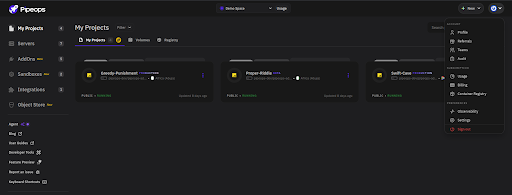
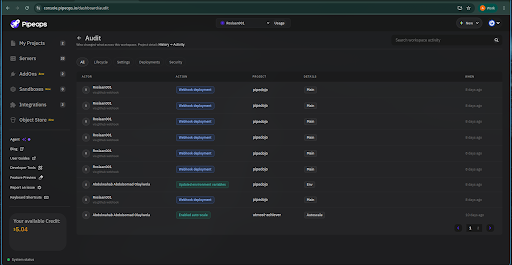
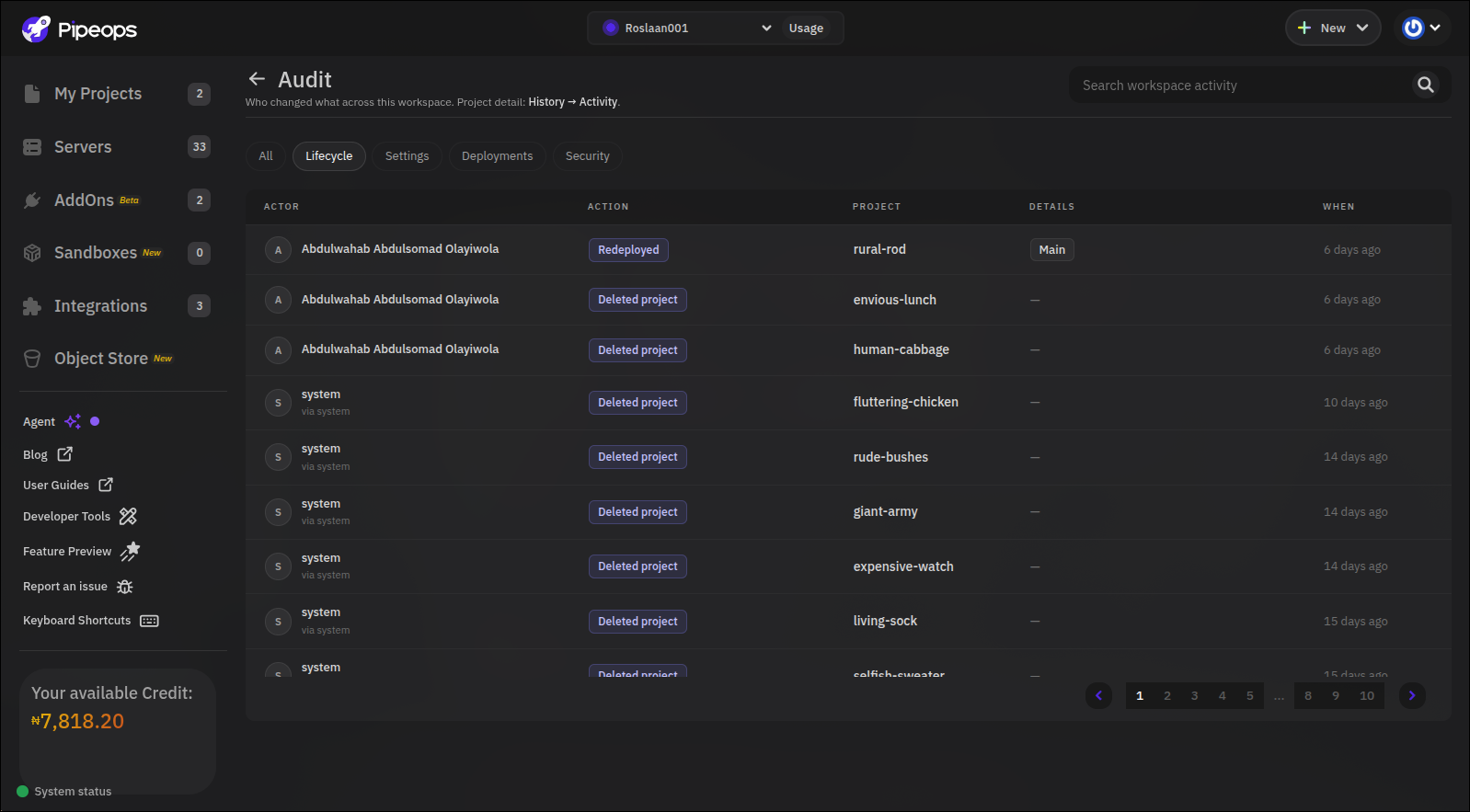
Audit Logs & Change Tracking records important workspace activity and provides context around each event.
Each activity can include:
- Actor — who performed the action
- Action — what happened
- Project — which project was affected
- Details — additional information about the event
- When — when the action occurred
The goal is simple: make important changes traceable.
How Audit Logs & Change Tracking Works
Audit Logs & Change Tracking covers different types of activity across your workspace, including deployments, project lifecycle events, settings changes, and security-related activity.
The Audit page organizes these events into categories:
- All
- Lifecycle
- Settings
- Deployments
- Security
You can also search workspace activity and filter events by category to focus on the activity you're investigating.
Environment Variable Changes
Environment variables can affect how an application runs. A changed database URL, API endpoint, secret, or feature flag can introduce unexpected behavior.
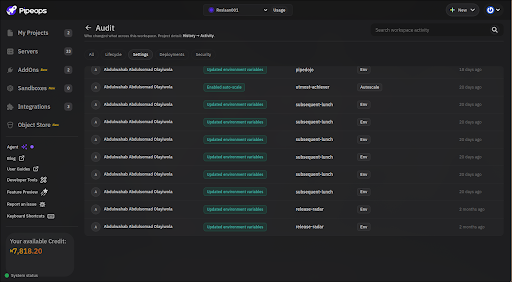
When an environment variable is updated, the action becomes part of the workspace activity history.
For example, an audit event can show: Updated environment variable
Along with the actor, affected project, details, and time of the change.
Deployments
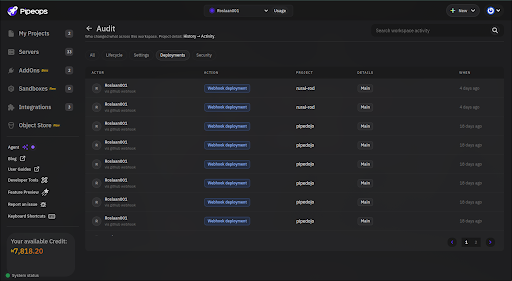
PipeOps also records deployment activity, including deployments triggered through webhooks.
An event such as: Webhook deployment can be recorded alongside the actor, affected project, branch or other available details, and when the deployment occurred.
This provides useful context when investigating an unexpected release or reviewing the sequence of deployments around an incident.
Project Deletions
Project deletion is another example of where an audit trail can be valuable.
If a project disappears from your workspace, the audit history can show:
Deleted project
Along with the user responsible, the affected project, and when the action occurred.
Following the Timeline
Audit logs can also help teams understand the sequence of events leading up to an incident.
For example:
- 2:03 PM — An environment variable was updated.
- 2:07 PM — A deployment was triggered through a webhook.
- 2:15 PM — The incident begins.
The audit log doesn't automatically tell you which event caused the problem. However, it gives you concrete events and a timeline to investigate instead of starting from scratch.
Benefits
- Faster investigations: When something unexpected happens, teams can use the activity history to quickly find the relevant changes instead of reconstructing events from memory or searching through multiple systems.
- Better visibility: A centralised activity history shows what is happening across the workspace, including actions taken by users and by automated sources.
- Clearer accountability: Knowing who performed an action and when it happened gives teams a clearer record of changes across applications and infrastructure.
Different team members can use it in different ways, depending on what they need. Admins can use the audit history to understand activity across the workspace and investigate important changes. Security reviewers can use the same trail to see user activity, which resources were affected and when changes happened. And engineering managers can use it as a reliable starting point when they need to understand what happened during an incident, without having to monitor every deployment.
Whatever the role, the value comes from the same place. The current state of an application only tells you where it is now. Change tracking adds the history behind that state, so when an environment variable changes, a deployment is triggered or a project is deleted, you have the context around what happened.
Conclusion
Changes will keep happening as long as people and automated systems are working on your applications. What your team needs is a clear record of them, so that when something breaks, nobody has to dig through deployment records and CI/CD logs or ask around to work out what changed.
That is what Audit Logs & Change Tracking gives you. The environment variable updated at 2:03 PM, the webhook deployment at 2:07 PM and the incident at 2:15 PM all sit in one timeline, and each event shows who acted, which project was affected and when. The log won't tell you which change caused the problem, but it gives you a clear place to start the investigation.
So instead of asking "Who changed that?", your team can start with "Here's what happened."
Ready to try it? Sign up at pipeops.io, deploy a project, then update an environment variable or trigger a deployment and open the Audit page to see the activity recorded.